


Creating Date Formulas in D365 Business Central

Updated: Feb 24
Learn how to save time while enhancing your daily workflows with date formulas in Microsoft Dynamics 365 Business Central. From repetitive sales documents to payment terms, effectively utilizing date formulas can substantially improve accuracy and efficiency within your system.
Table of Contents:
What are Date Formulas?
In Microsoft Dynamics 365 Business Central, date formulas allow you to perform dynamic date calculations based on a variety of criteria. Date formulas can be utilized for recurring documents such as general journals and sales documents, as well as for payment terms. Date formulas provide flexibility and support for all different types of scenarios.
Simple Examples of Using Date Formulas
One example that is commonly used is: NET 30 Payment Terms. The representative calculation for NET 30 Payment Terms is 30D. This instructs Business Central to calculate and create a due date that is thirty days from the current date, also known as the Document Date. If you use D30, then Business Central will select the next 30th day of the month, regardless of today's date.
Another common example is using 0D to set the due date to today's date, meaning it would be due upon receipt.
Use the formula 60D to set the due date as sixty days from today.
These date formulas are intuitive and can be easily adjusted to suit your specific needs.
Document Date | Payment Terms | Due Date Calculation | Due Date | Description |
3/3/2025 | NET 30 | 30D | 4/3/2025 | Due in 30 Days |
3/3/2025 | Next 30th | D30 | 3/30/2025 | Due on the Next 30th Day |
3/3/2025 | DOR | 0D | 3/3/2025 | Due Upon Receipt |

Intermediate Date Formulas
What if you wanted to set a due date for the first day of the next month? You would want to use 1M-CM to instruct Business Central to calculate one month from today's date and find the first day of that month.
Document Date | Payment Terms | Due Date Calculation | Due Date | Description |
3/3/2025 | 1st D NM | 1M-CM | 4/1/2025 | Due the First Day of the Next Month |
3/3/2025 | LD NM | 1M+CM | 3/30/2025 | Due the Last Day of the Next Month |

Alternatively, you would use 1M+CM to find the last day of the upcoming month. The CM component is important as it will direct you to the end of the month.
Use +CM to find the end of the month and -CM to find the beginning of the month.
Here are the Current (C) Functions for calendar units:
Letter | Meaning |
C | Current |
D | Day(s) |
W | Week(s) |
M | Month(s) |
Q | Quarter(s) |
Y | Year(s) |

Advanced Date Formulas
What else can date formulas do? I'm glad you asked.
To set a due date for the 15th of the next month, you would want to use the formula CM+D15 to calculate the end of the current month, and then select the due date as the fifteenth day of the following month. You can see this below in the 15TH NM calculation. This is ideal for businesses that primarly operate on mid-month billing cycles.

Document Date | Payment Terms | Due Date Calculation | Due Date | Description |
3/3/2025 | 15th NM | CM+D15 | 4/15/2025 | Due on the 15th Day of the Next Month |
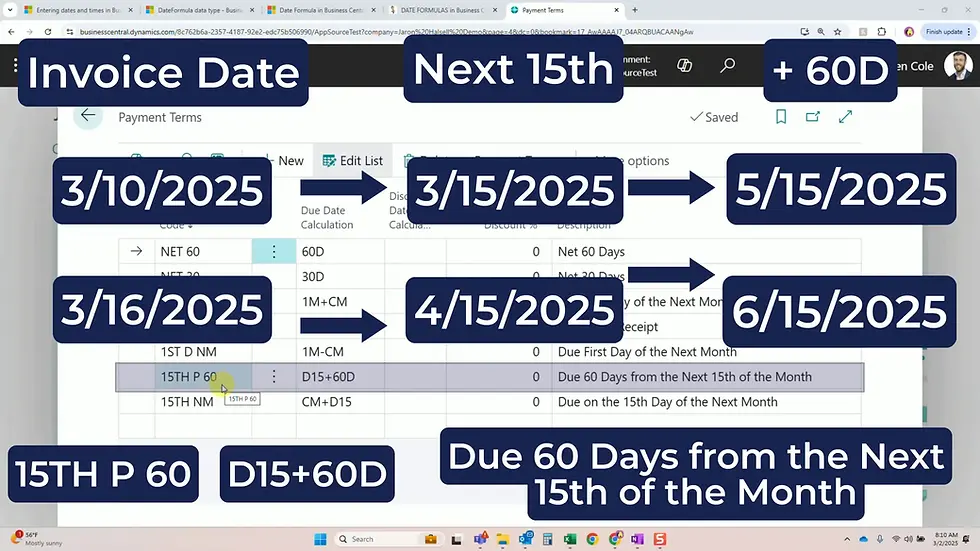
3/10/2025 | 15th P 60 | D15+60D | 4/15/2025 | Due 60 Days from the Next 15th of the Month |
3/16/2025 | 15th P 60 | D15+60D | 5/15/2025 | Due 60 Days from the Next 15th of the Month |
To expand on that premise, you could also use a formula of D15+60D to find the next fifteenth of the month, and add 60 days to it (as seen in payment terms 15TH P 60 below). For instance, if you have an invoice date of March 10th, the formula will calculate the next fifteenth (March 15th) and then add sixty days, resulting in a due date of May 15th. However, if the invoice was posted on March 16th, the formula will look for the next fifteenth (April 15th) and still add sixty days, calculating a due date of June 15th instead.
Conclusion
This is just the start for what date formulas can do in Business Central! There are numerous combinations and scenarios to explore. As you utilize the formulas, you will find yourself able to manage dates more effectively across the system.
List of Useful Date Formulas
Here is a list of common examples of date formulas in Microsoft Dynamics 365 Business Central that we hope can help save you time and ensure accuracy:
Date | Date Calculation | Due Date | Description |
3/3/2025 | 30D | 4/3/2025 | Due in 30 Days |
3/3/2025 | D30 | 3/30/2025 | Due on the Next 30th Day |
3/3/2025 | 0D | 3/3/2025 | Due Upon Receipt |
3/3/2025 | 1M-CM | 4/1/2025 | Due the First Day of the Next Month |
3/3/2025 | 1M+CM | 4/30/2025 | Due the Last Day of the Next Month |
3/3/2025 | CM+D15 | 4/15/2025 | Due on the 15th Day of the Next Month |
3/3/2025 | CM+15D | 4/15/2025 | Due on the 15th Day of the Next Month |
3/3/2025 | D15+60D | 4/15/2025 | Due 60 Days from the Next 15th of the Month |
3/16/2025 | D15+60D | 5/15/2025 | Due 60 Days from the Next 15th of the Month |
3/3/2025 | CM | 3/31/2025 | Due on the Last Day of the Current Month |
3/3/2025 | -CM | 3/1/2025 | Due on the First Day of the Current Month |
3/3/2025 | CY | 12/31/2025 | Due on the Last Day of the Current Year |
3/3/2025 | CW | 3/8/2025 | Due on the Last Day of the Current Week |
3/3/2025 | -30D | 2/1/2025 | Due 30 Days Ago |
3/3/2025 | -D30 | 2/28/2025 | Due the Last 30th |
Note: | The above goes to the 28th, if there are not 30 days in the month | ||
3/3/2025 | 1Y-CY | 1/1/2026 | Due the First Day of Next Year |
3/3/2025 | CY+1D | 1/1/2026 | Due the First Day of Next Year |
Frequently Asked Questions
What are date formulas in Microsoft D365 Business Central?
Date formulas are expressions that enable you to perform dynamic date calculations based on various criteria, such as payment terms or recurring documents.
How do I create date formulas?
A date formula is created using a combination of letters and numbers. For example, 30D will calculate thirty days from the current date, while 1M-CM calculates the first day of the next month.
Can I combine multiple date formulas?
Absolutely! You can combine different date formulas to create more complex date calculations that meet your specific business needs. For example, D15+60D would calculate 60 days after the next 15th of the month.
Date Formula Resources
✅ Stay Up-to-Date and Get Ahead
For regular updates, Business Central tutorials, and expert insights - follow Ben Cole on Business Central! Be sure to subscribe to our blog and follow me on LinkedIn.
Ready to optimize your Business Central environment with guidance from a BC expert?
Contact Ben Cole at Ben@BenColeBC.com or (214) 433-0923.
Don't forget to subscribe so that you never miss a weekly tip.

Ben Cole is passionate about making Microsoft Dynamics 365 Business Central work smarter for real people—users and partners alike. With roots in public accounting, Ben’s seen firsthand how automation and clever solutions can transform the Business Central experience. He’s known for breaking down complex topics with a dash of wit and plenty of practical advice. If you want to get more out of Business Central (and maybe even enjoy the process), Ben’s your go-to guide.
(214) 433-0923


Comments