


BC Tip #16 - Page Inspection for D365 Business Central

Updated: Mar 12
If you need to see what’s happening behind the scenes on a Business Central page, the Page Inspection tool is the fastest way to look under the hood. It reveals the page and table you’re on, lets you search for specific fields and values, shows which extensions are interacting with the page, and exposes any active filters.
All from a single, easy-to-open panel.
For the full rundown, check out the YouTube Video and Blog Post below.
Don't forget to subscribe so that you never miss a weekly tip.
Table of Contents
Quick Keyboard Shortcut
Open Page Inspection with the keyboard shortcut CTRL + ALT + F1.
If you are a Mac user, CTRL + OPTION + F1.
If you prefer the old fashioned way, you can also navigate to it through:
The Business Central Help Button (question mark).

Then going to Help & Support.

Finally, clicking Inspect Pages and Data.

For more information - check out the video below.
What Page Inspection shows
Page Name and Number — know exactly which BC page you’re working on. Typically I think of pages from a User Interface standpoint. Pages control what you see on the screen.
Table Name and Number — see the table that stores the data for that page (for example, Sales Header or Line in the below. I think of tables from a database standpoint. This is everything from a technical data standpoint that exists and is stored in Business Central. Tables and pages work together. Tables store the data, and pages drive which of the data is shown on the screen.

Table Fields and Local Search — This section shows every field that exists on the table, and is fully searchable by the field name, field number, or even by a data value that exists in a table field. See a few popular examples in the video below.
Extensions — view which extensions are installed and interacting with the selected page or table.

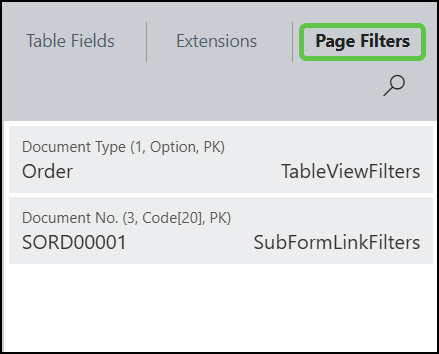
Page filters — quickly inspect filters applied to the current view, including system-level filters you might not have set.
To access page inspection, use keyboard shortcut CTRL + ALT + F1
Practical uses and examples
Find hidden fields: Discover fields that exist on the underlying table but aren’t shown on the page—handy for reporting or custom development.
Map data for imports: When preparing configuration packages or data imports, use the table and field numbers uncovered by Page Inspection to target the correct fields.
Quick troubleshooting: If expected records do not appear, check the Page Filters panel to identify system or user filters affecting the view.
Investigate extension impact: The Extensions tab helps identify customizations or add-ons that modify page behavior or data.
Developer support: Grab field numbers and table info to communicate clearly with AL developers or consultants.
Tips and best practices
Use it regularly: Page Inspection is simple but powerful—opening it often will save time when diagnosing issues or preparing imports.
Search by value: When you suspect specific values should appear on a page, searching for those values in Page Inspection helps locate where they live.
Document field IDs: Note field and table numbers for frequent integrations or mappings to reduce guesswork later.
Combine with configuration packages: Use the table and field IDs from Page Inspection when building configuration packages so your imports go straight to the right fields.
FAQ
What does Page Inspection show?
It shows the current page name and number, the underlying table and table number, available fields, a search capability for field names/field numbers/values, installed extensions interacting with the page, and any active page filters.
How do I open Page Inspection?
Press Ctrl + Alt + F1. The panel opens and updates in real time as you move between page sections or subforms.
Can I search for a data value, not just field names?
Yes. The search field returns matches for field names, field numbers, and also data values found on the table.
Is Page Inspection useful for data imports?
Absolutely. It reveals the exact table and field numbers you should target when creating configuration packages or preparing bulk imports.
How can I see which extensions affect a page?
Open the Extensions tab inside Page Inspection. It lists installed extensions that interact with the currently selected page or table, helping you identify customization sources.
What User Permission Sets are needed to enable the Page Inspection Function in Dynamics 365 Business Central?
The Business Central user will need the TROUBLESHOOT TOOLS User Permission Set added to their user card in order to enable this functioanlity. More specifically this includes the necessary Execute permissions on both system objects 1350 (Run Table) and 5330 (Tools, Zoom).
Ready to optimize your Business Central environment with guidance from a BC expert?
Contact Ben Cole at Ben@BenColeBC.com or (214) 433-0923.
Don't forget to subscribe so that you never miss a weekly tip.

Ben Cole is passionate about making Microsoft Dynamics 365 Business Central work smarter for real people—users and partners alike. With roots in public accounting, Ben’s seen firsthand how automation and clever solutions can transform the Business Central experience. He’s known for breaking down complex topics with a dash of wit and plenty of practical advice. If you want to get more out of Business Central (and maybe even enjoy the process), Ben’s your go-to guide.
(214) 433-0923


Comments