


Business Central Table List

Here’s a practical, real‑world list of the most commonly used tables in Dynamics 365 Business Central, grouped by functional area.
They are also great when you need to import data via Configuration Packages.
For more information, grouped by category, see below:
Here is a list of some of the most used tables I typically interact with.
Want to know the Table Number for the current page?
Try the Keyboard Shortcut CTRL + ALT + F1
Master Data - Most Popular
(3) Payment Terms
(13) Salesperson/Purchaser
(14) Location
(15) G/L Account (Chart of Accounts Master)
(18) Customer
(23) Vendor
(27) Item
(222) Ship To Address
(224) Order Address
(270) Bank Account
(287) Customer Bank Account
(288) Vendor Bank Account
(289) Payment Methods
(348) Dimension
(349) Dimension Value
(350) Dimension Combination
(5600) Fixed Asset
More Master Data
(4) Currency
(5) Finance Charge Terms
(6) Customer Price Group
(9) Country/Region
(10) Shipment Methods
(50) Accounting Periods
(60) Document Sending Profile
(99) Item Vendor
(204) Unit of Measure
(220) Business Unit
(225) Zip Codes
(230) Source Code
(231) Reason Code
(286) Territory
(308) Number Series
(318) Tax Area
(319) Tax Area Line
(320) Tax Jurisdiction
(321) Tax Group
(322) Tax Detail
(5050) Contact
(5053) Business Relation
(5054) Contact Business Relation
(5200) Employee
(5401) Item Variant
(5404) Item Unit of Measure
(5700) Stockkeeping Unit
(5722) Item Category
(7002) Sales Price
(7004) Sales Line Discount
(7012) Purchase Price
(7500) Item Attribute
(7501) Item Attribute Value
Posting Groups
(92) Customer Posting Group
(93) Vendor Posting Group
(94) Inventory Posting Groups
(250) General Business Posting Groups
(251) General Product Posting Groups
(252) General Posting Setup
(277) Bank Account Posting Groups
(5606) FA Posting Group
Key Setups
(79) Company Information
(91) User Setup
(98) General Ledger Setup
(311) Sales & Receivables Setup
(312) Purchases & Payables Setup
(313) Inventory Setup
(326) Tax Setup
(402) Change Log Setup
(5813) Inventory Posting Setup
Transactions (Unposted)
(36) Sales Header
(37) Sales Line
(38) Purchase Header
(39) Purchase Line
(81) General Journal Line
(83) Item Journal Line
(5621) FA Journal Line
Transactions (Posted)
(17) G/L Entry
(21) Customer Ledger Entry
(25) Vendor Ledger Entry
(32) Item Ledger Entry
(110) Sales Shipment Header
(111) Sales Shipment Line
(112) Sales Invoice Header
(113) Sales Invoice Line
(114) Sales Credit Memo Header
(115) Sales Credit Memo Line)
(120) Purchase Receipt Header
(121) Purchase Receipt Line
(122) Purchase Invoice Header
(123) Purchase Invoice Line
(124) Purchase Credit Memo Header
(125) Purchase Credit Memo Line
(271) Bank Account Ledger Entry
(272) Check Ledger Entry
(5601) Fixed Asset Ledger Entry
Page Inspection
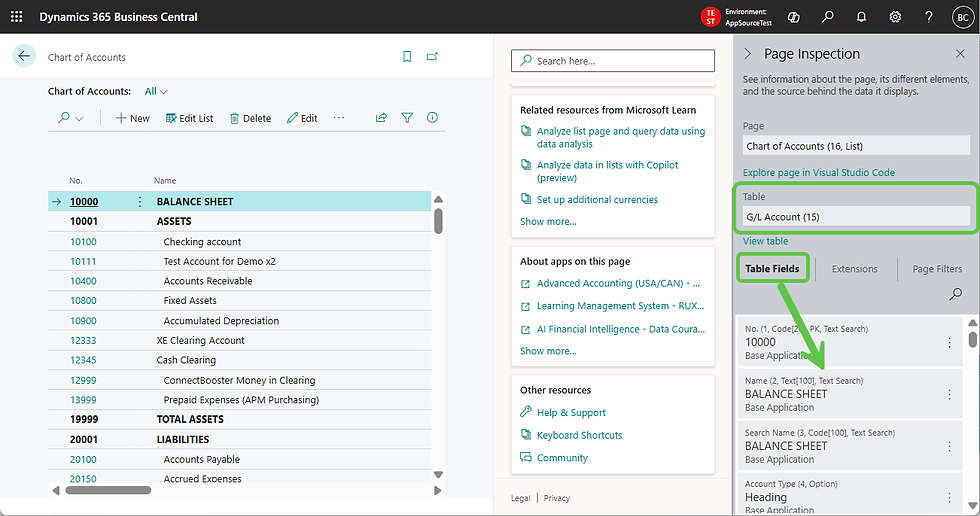
To find the table number, either use the keyboard shortcut CTRL + ALT + F1, or follow the steps below to enable the page inspection in the user interface. In the example below, we will inspect the Chart of Accounts (Table 15 - G/L Account).
First you will want to click the ? and then select Help & Support

After entering the Help & Support area, click Inspect Pages and data.

Finally - this will open a new pane, called the Page Inspection. Here you can see the Page and Table Information for the current page you have open.
In this case, Table 15 - G/L Account.
Additionally, you can see all of the fields, and their data elements, for the current selection.
Ready to optimize your Business Central environment with guidance from a BC expert?
Contact Ben Cole at Ben@BenColeBC.com or (214) 433-0923.
Don't forget to subscribe so that you never miss a weekly tip.

Ben Cole is passionate about making Microsoft Dynamics 365 Business Central work smarter for real people—users and partners alike. With roots in public accounting, Ben’s seen firsthand how automation and clever solutions can transform the Business Central experience. He’s known for breaking down complex topics with a dash of wit and plenty of practical advice. If you want to get more out of Business Central (and maybe even enjoy the process), Ben’s your go-to guide.
(214) 433-0923


Comments